Selling on Shopify POS
Fixed bundles ring up like any product; the Bundles tile handles mix-and-match.
Fixed bundles
A fixed bundle is a normal variant, so staff can add it from product search, a barcode, or a product tile exactly as they would anything else. At checkout it expands into its components with the savings applied.
Add the Bundles tile
- On the POS home screen press Add tile.
- Choose Apps, then Better Bundles → Bundles.
The tile shows how many bundles are ready to sell at this location.
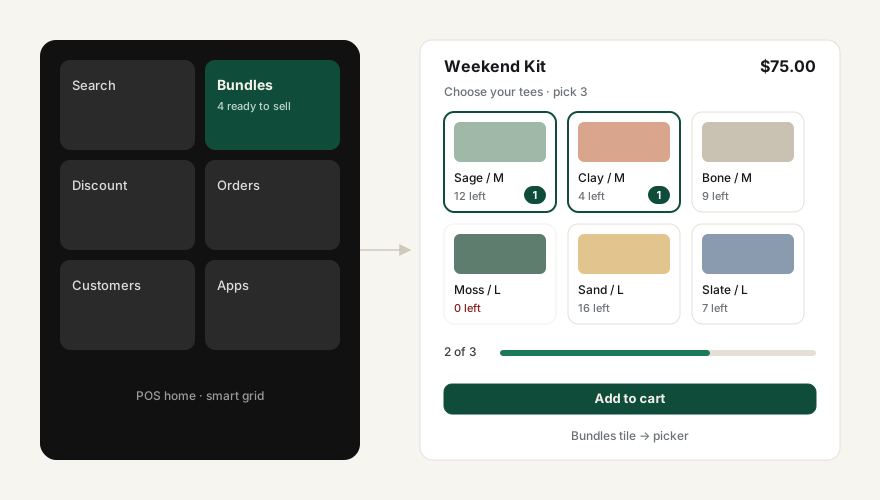
Sell a mix-and-match bundle
- Tap the Bundles tile and choose the bundle (search works).
- Pick the options with the customer. The bar at the bottom shows progress — “2 of 3”.
- Press Add to cart. The line shows the bundle price and the picks underneath.
To change picks after adding, tap the cart line and choose Edit bundle picks.
Stock
The picker shows how many of each option this location has and won’t let staff pick more than is in stock. Fixed bundles show “Out of Stock” when any component is unavailable. Better Bundles does not maintain a separate stock count for the bundle itself — see Inventory.
Adding the same bundle with the same picks twice merges into one line with quantity 2. Different picks stay as separate lines so each set of options is fulfilled correctly.