Create a bundle
Turn any product into a fixed bundle from its product page in the admin.
1. Create the parent product
Add a product the usual way — title, images, description — and give it the price you want to charge for the whole bundle. This product is what customers add to their cart. Save it.
The bundle price lives in the product’s normal Pricing card. Change it there any time; the app keeps the bundle definition in step.
2. Open the Better Bundles block
On the product page, scroll to the Better Bundles block and press Set up bundle. If the product has several variants, choose which variant is the bundle.
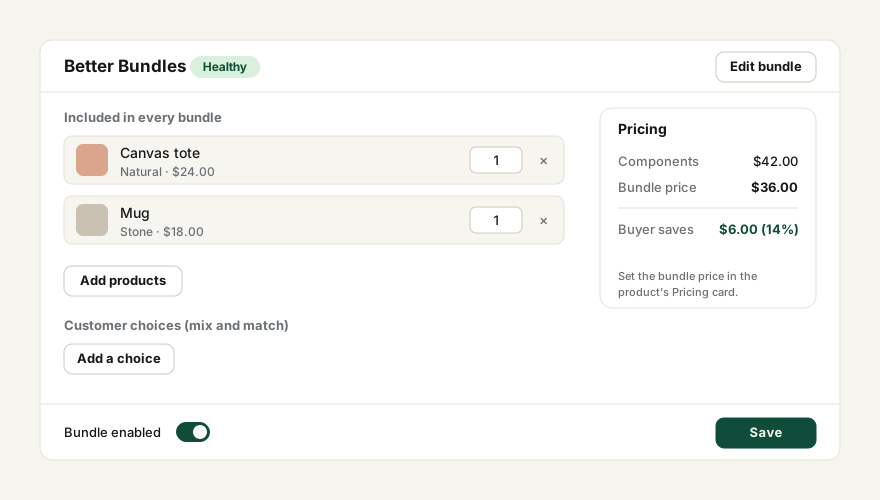
3. Pick the components
Under Included in every bundle, press Add products and select the variants the bundle contains. Set a quantity for each — for example 2 × Coffee 250 g and 1 × Mug.
The Pricing summary shows what the components add up to and how much the buyer saves at your bundle price. A bundle that costs more than its parts still works, but the app flags it.
4. Save
Press Create bundle. The block now shows the bundle’s status, and the bundle appears in the app’s Bundles list.
Rules for components
- A component must be an active product variant in your store.
- A bundle cannot contain another bundle, a gift card, or a subscription (selling plan) product.
- A bundle cannot contain one of its own variants.
- Quantities are whole numbers of 1 or more.
Editing or removing
Return to the product page and press Edit bundle. Remove deletes the bundle definition only — the product and every component stay as they are. Untick Bundle enabled to pause a bundle without deleting it.